> ## Documentation Index
> Fetch the complete documentation index at: https://docs.peopledatalabs.com/llms.txt
> Use this file to discover all available pages before exploring further.
# Connect Your PDL API Key to Clay
> Add your People Data Labs API key to Clay and reuse it across your Clay workflows.
You can add your People Data Labs API key to Clay in two ways:
* **Through Workspace Settings:** Add your API key to your Clay workspace before building a workflow.
* **From the Enrichment Panel:** Add your API key while you're already setting up a PDL enrichment in a table.
Both methods save the connection to your Clay workspace, so you can reuse it across other tables and workflows.
You don't need your own PDL API key to use People Data Labs in Clay. Clay also provides managed PDL connections that work out of the box.
See the [FAQs](#faqs) below for the differences between Clay-managed connections and using your own PDL API key.
## Before you start
You'll need a PDL API key. You can find your API keys in the [PDL dashboard](https://www.peopledatalabs.com/).
Keep your API key private. **Do not paste it into a Clay table cell.** Add it only through Clay's connection settings or the enrichment setup panel.
***
## Method 1: Add your API key through Workspace Settings
Use this method if you want to set up your PDL connection before building a workflow. Once saved, the connection can be reused across your Clay tables and workflows.
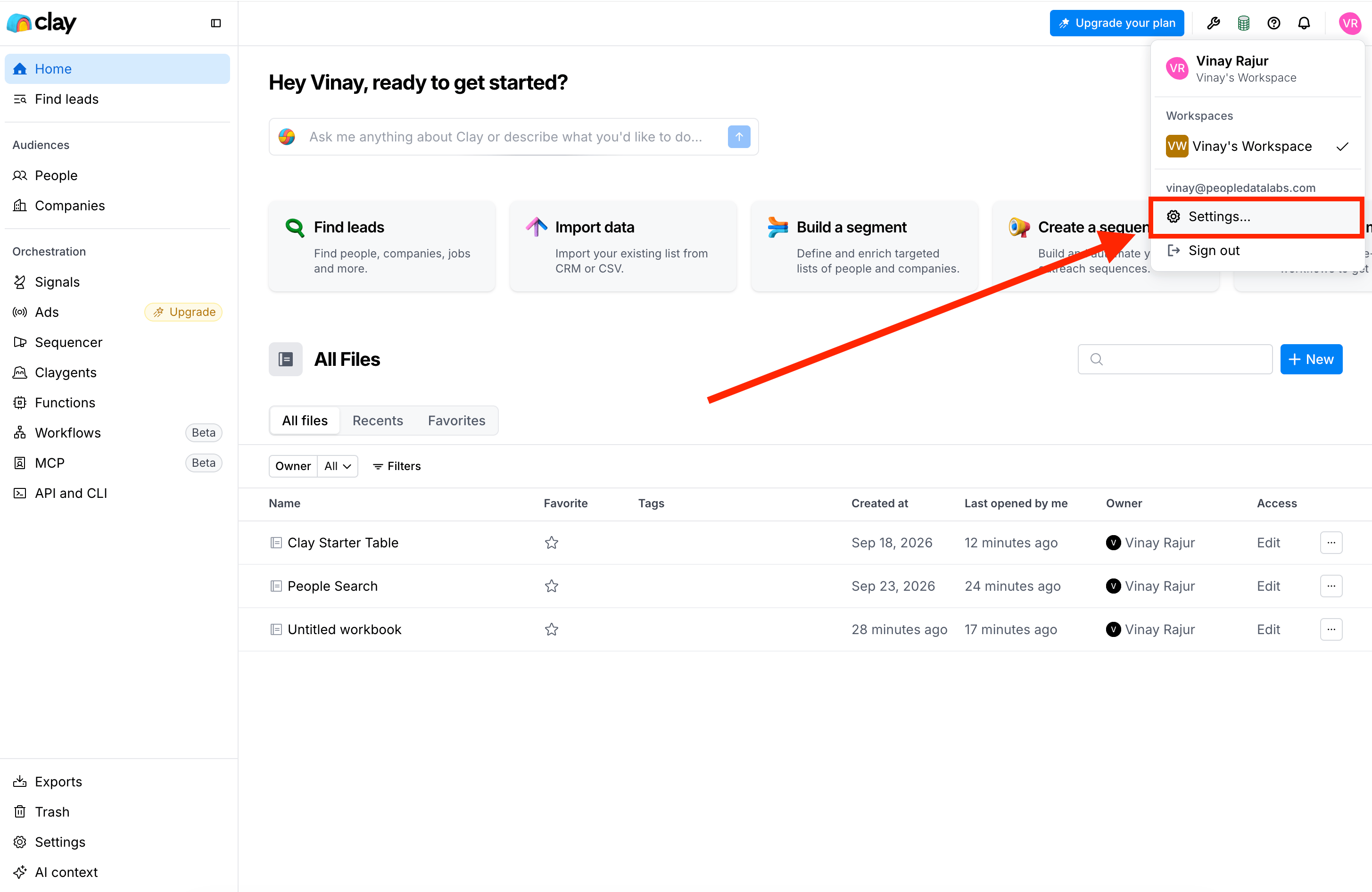
Sign in to your Clay workspace. Click your profile picture or workspace name, then select **Settings**.
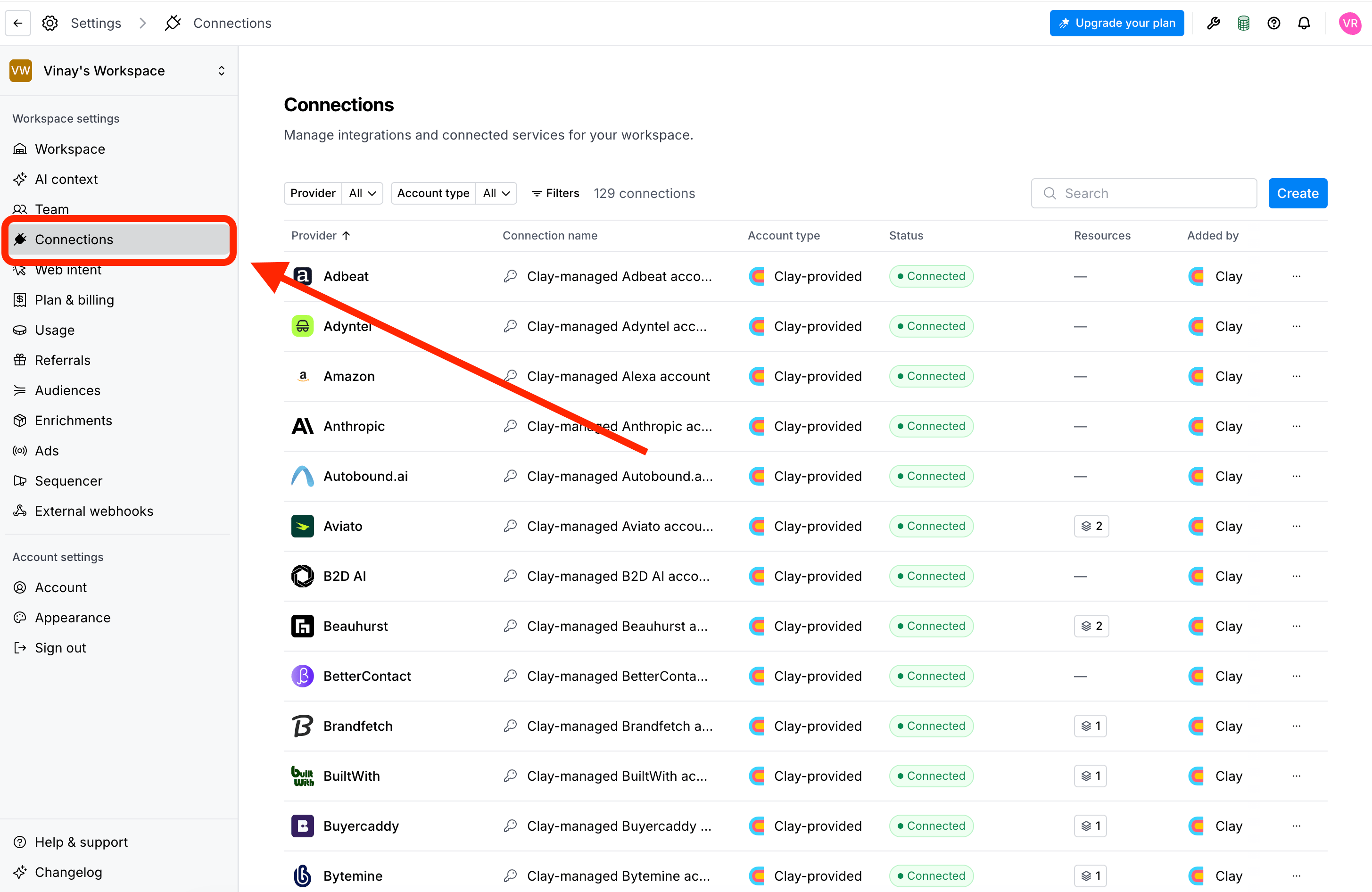
 Select **Connections** from the settings navigation.
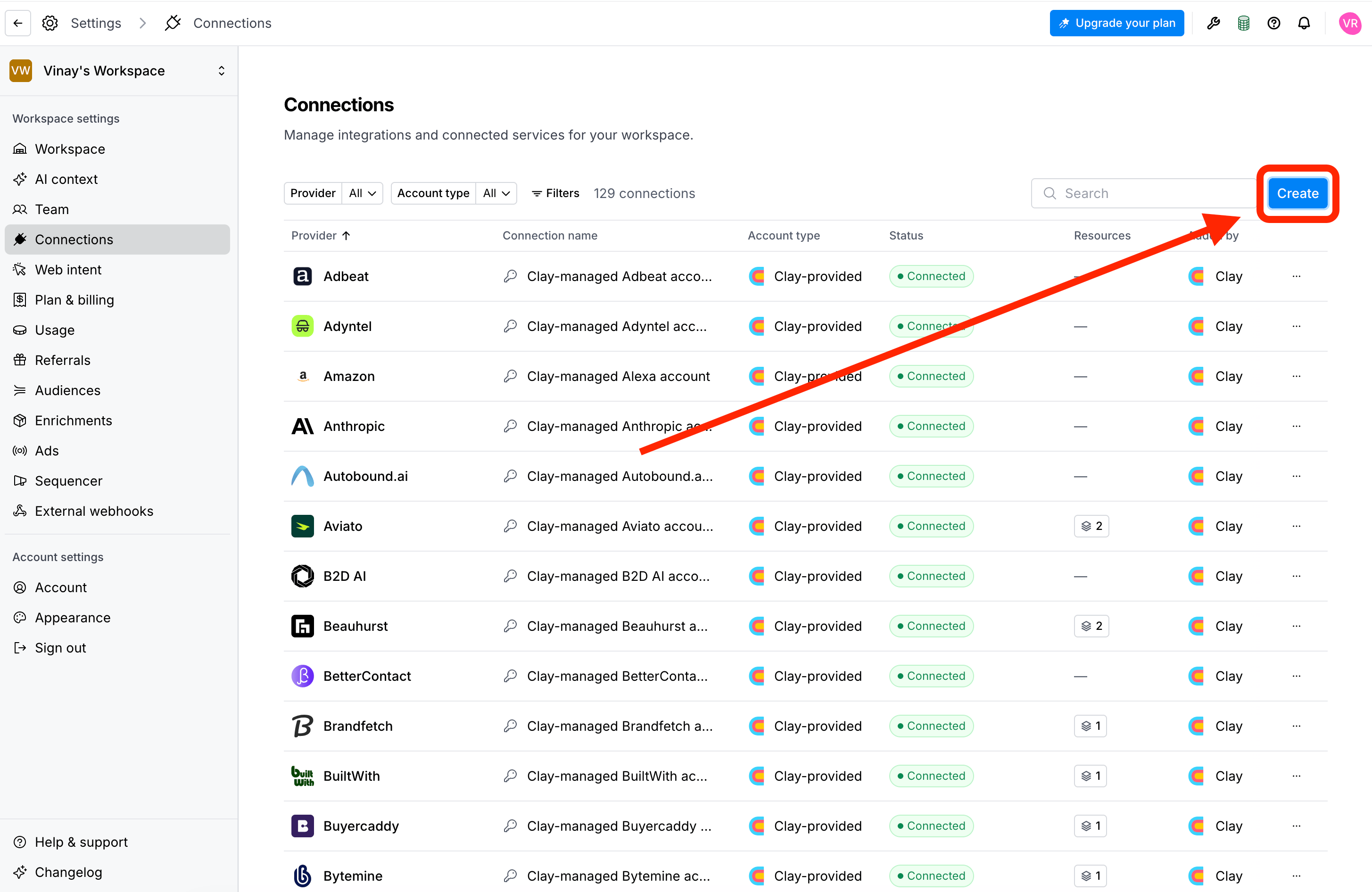
 Click **Create**, then search for **People Data Labs**.
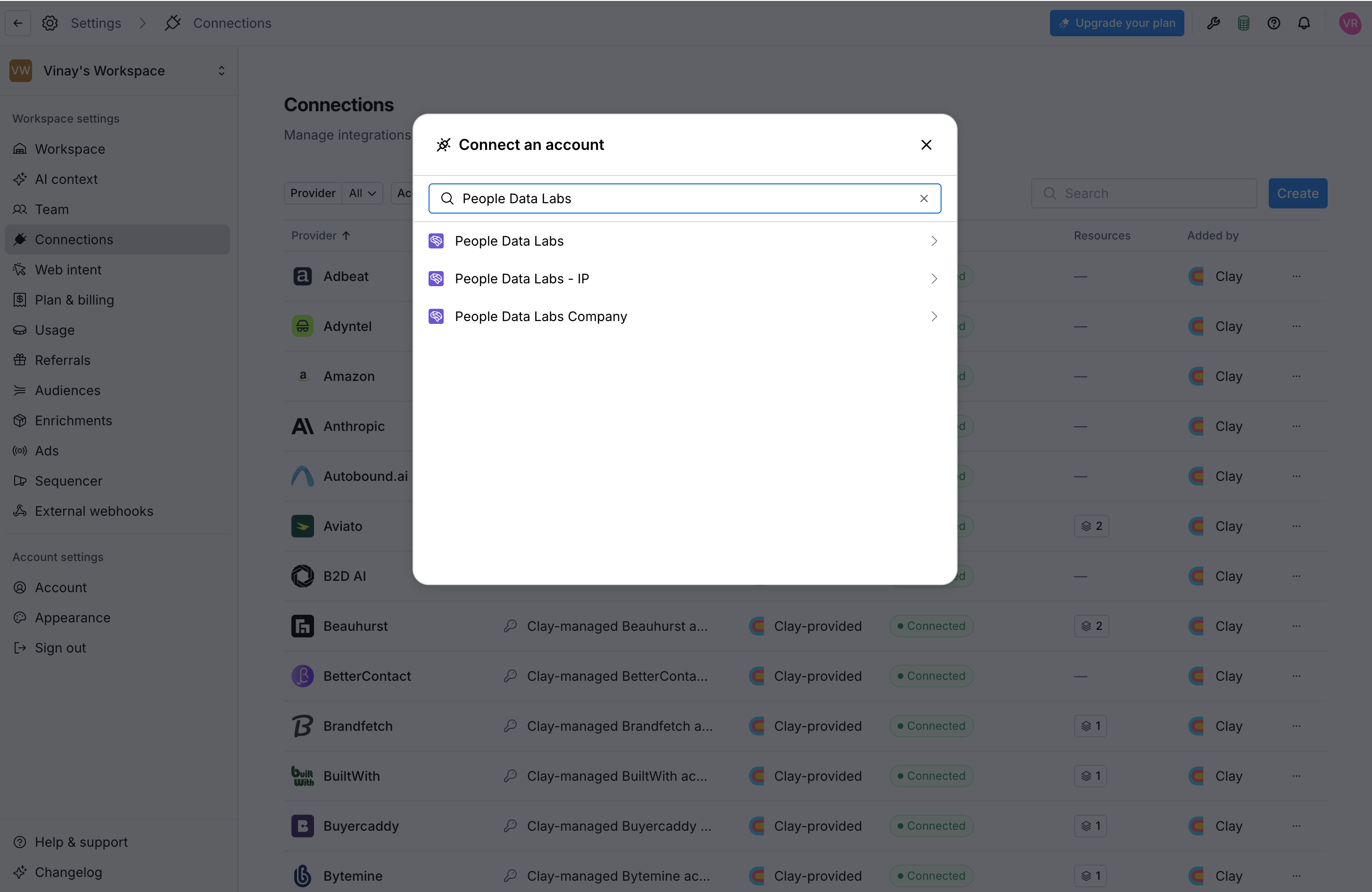 You'll see multiple People Data Labs connection options. Choose the PDL product or products you want to use.
See [Why are there multiple People Data Labs connection options?](#why-are-there-multiple-people-data-labs-connection-options) for more information.
In the connection form:
1. Enter a name for the connection.
2. Paste your PDL API key.
3. Select whether to save this as the default API key for this connection.
You'll see multiple People Data Labs connection options. Choose the PDL product or products you want to use.
See [Why are there multiple People Data Labs connection options?](#why-are-there-multiple-people-data-labs-connection-options) for more information.
In the connection form:
1. Enter a name for the connection.
2. Paste your PDL API key.
3. Select whether to save this as the default API key for this connection.
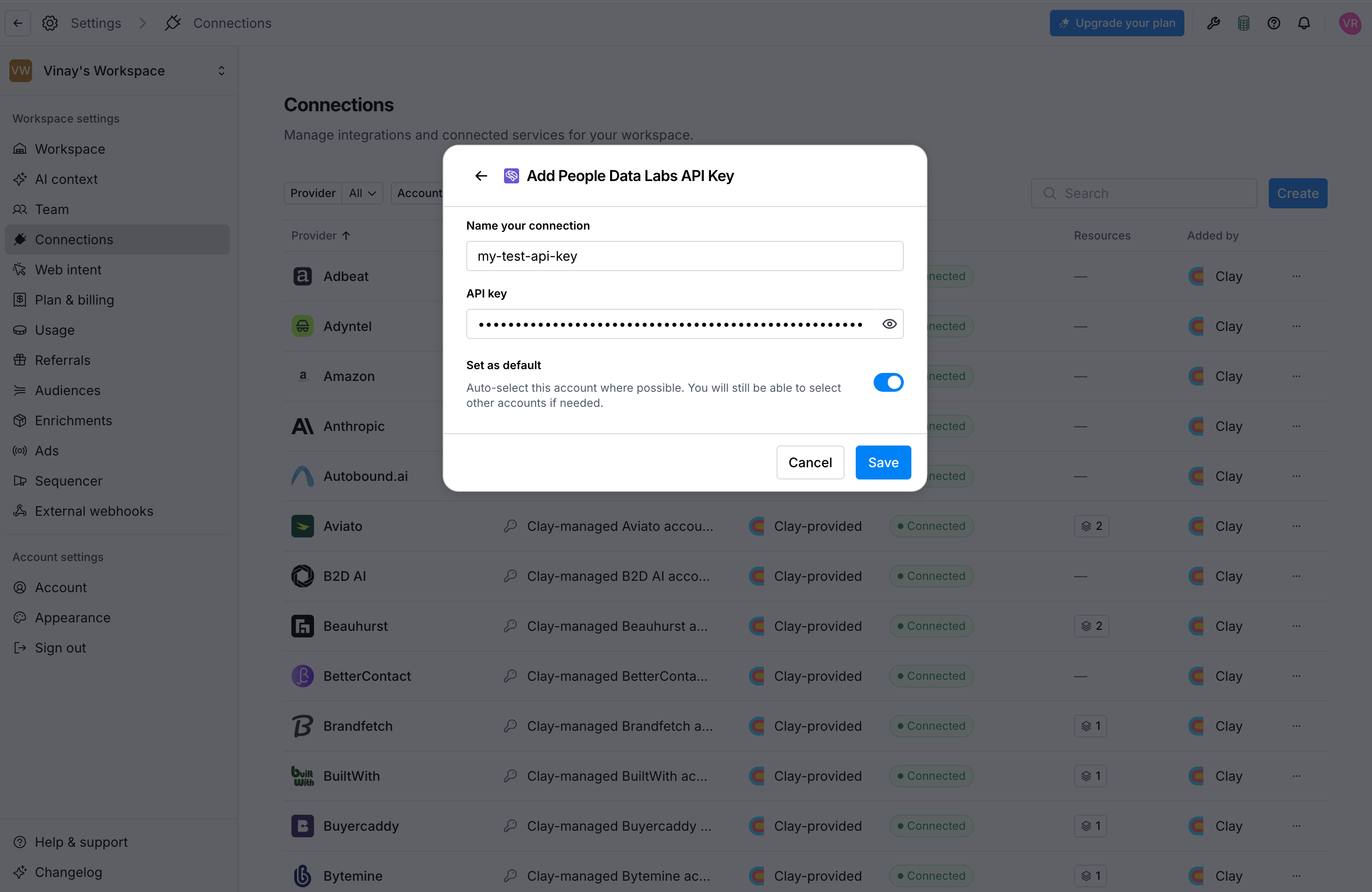 Use a name that will help you distinguish this connection from Clay-managed PDL connections or from other PDL API keys you may add.
Click **Save**.
Use a name that will help you distinguish this connection from Clay-managed PDL connections or from other PDL API keys you may add.
Click **Save**.
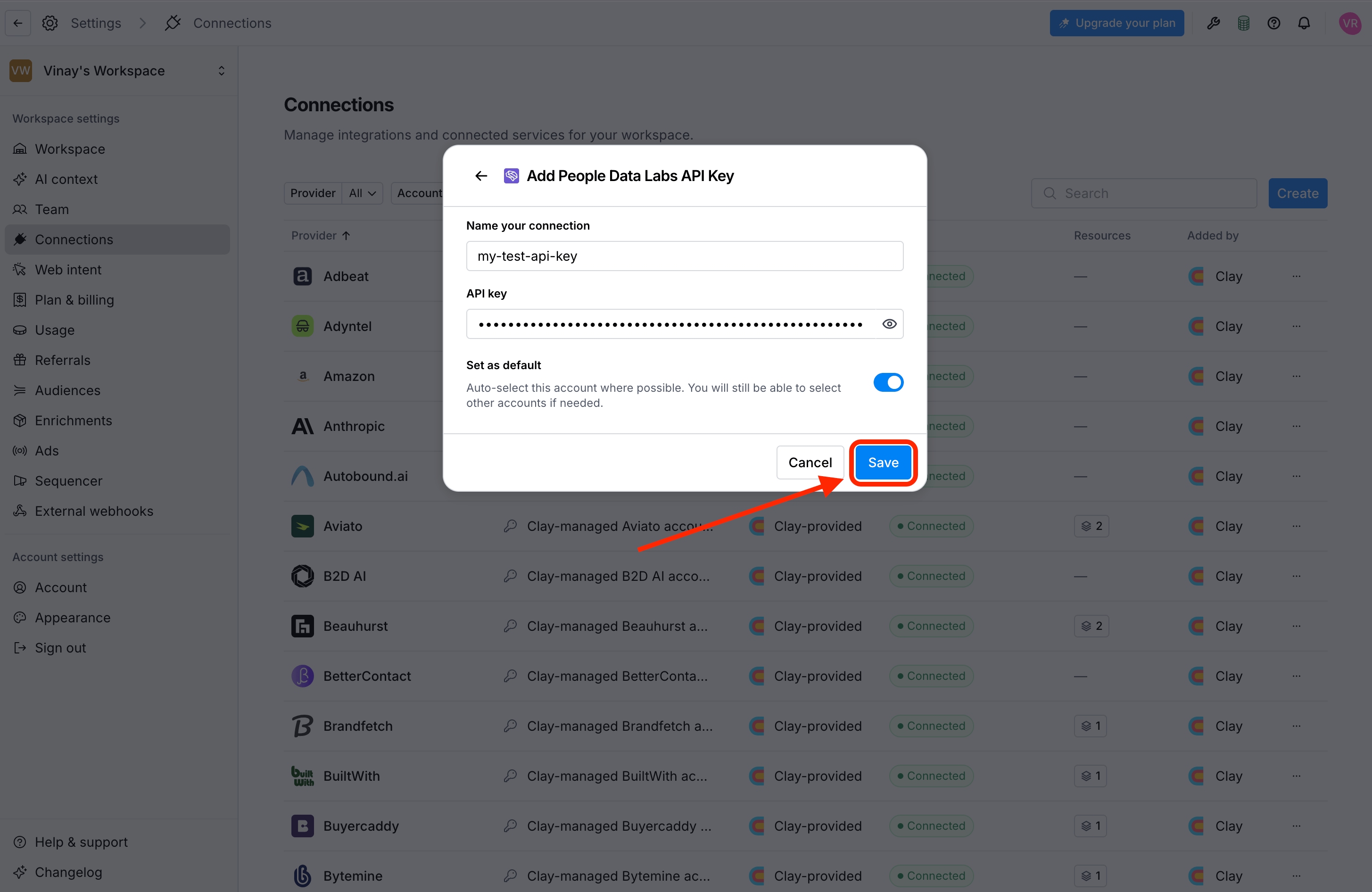 🎉 Your PDL connection is now available in your Clay workspace and can be selected when you configure supported PDL enrichments in your workflows.
***
## Method 2: Add your API key from the Enrichment Panel
If you're already working in a Clay table, you can add a PDL API key while setting up an enrichment.
This creates the same workspace-level connection as Method 1. After you save it, you can reuse the connection in other tables and workflows.
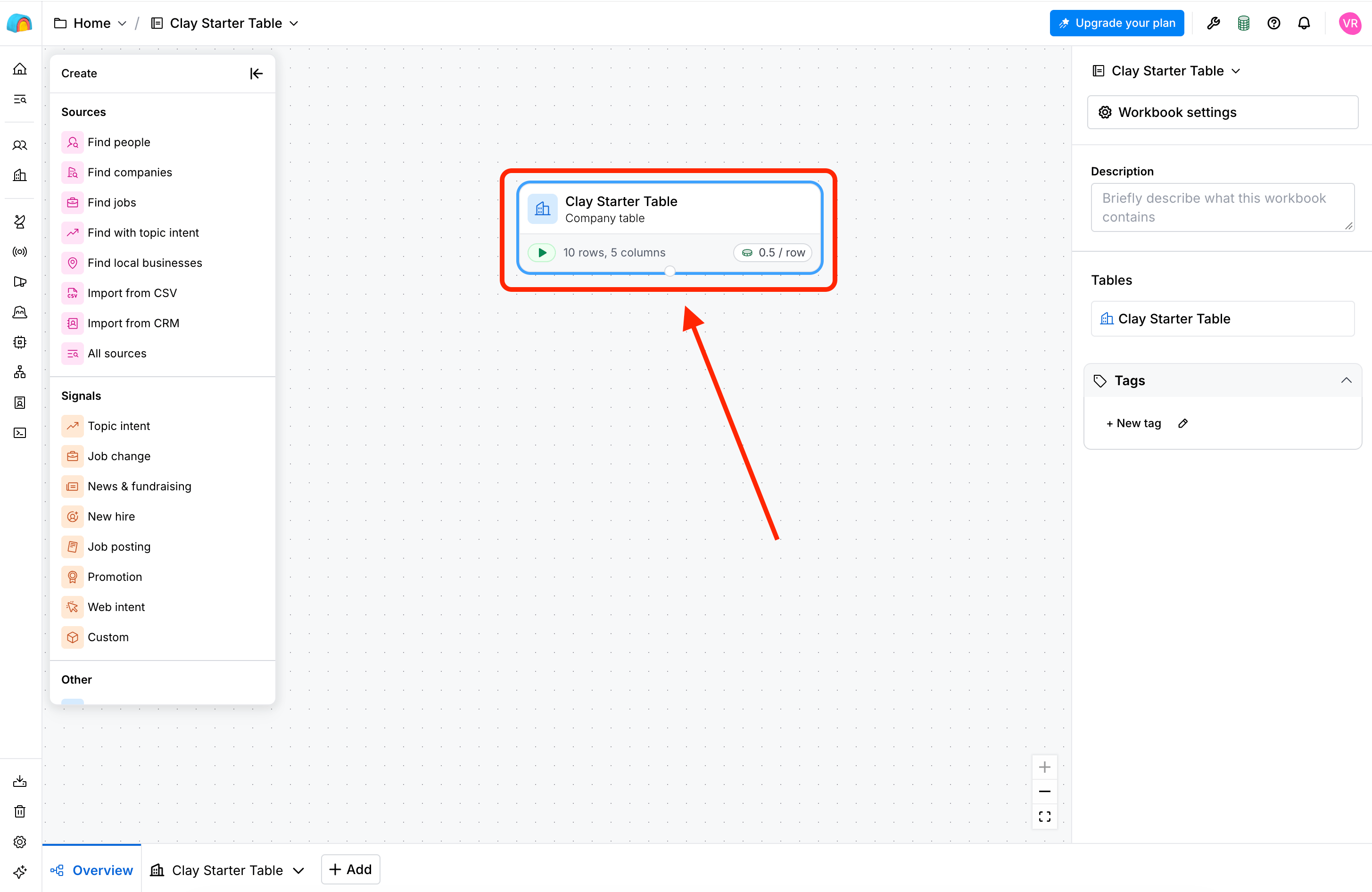
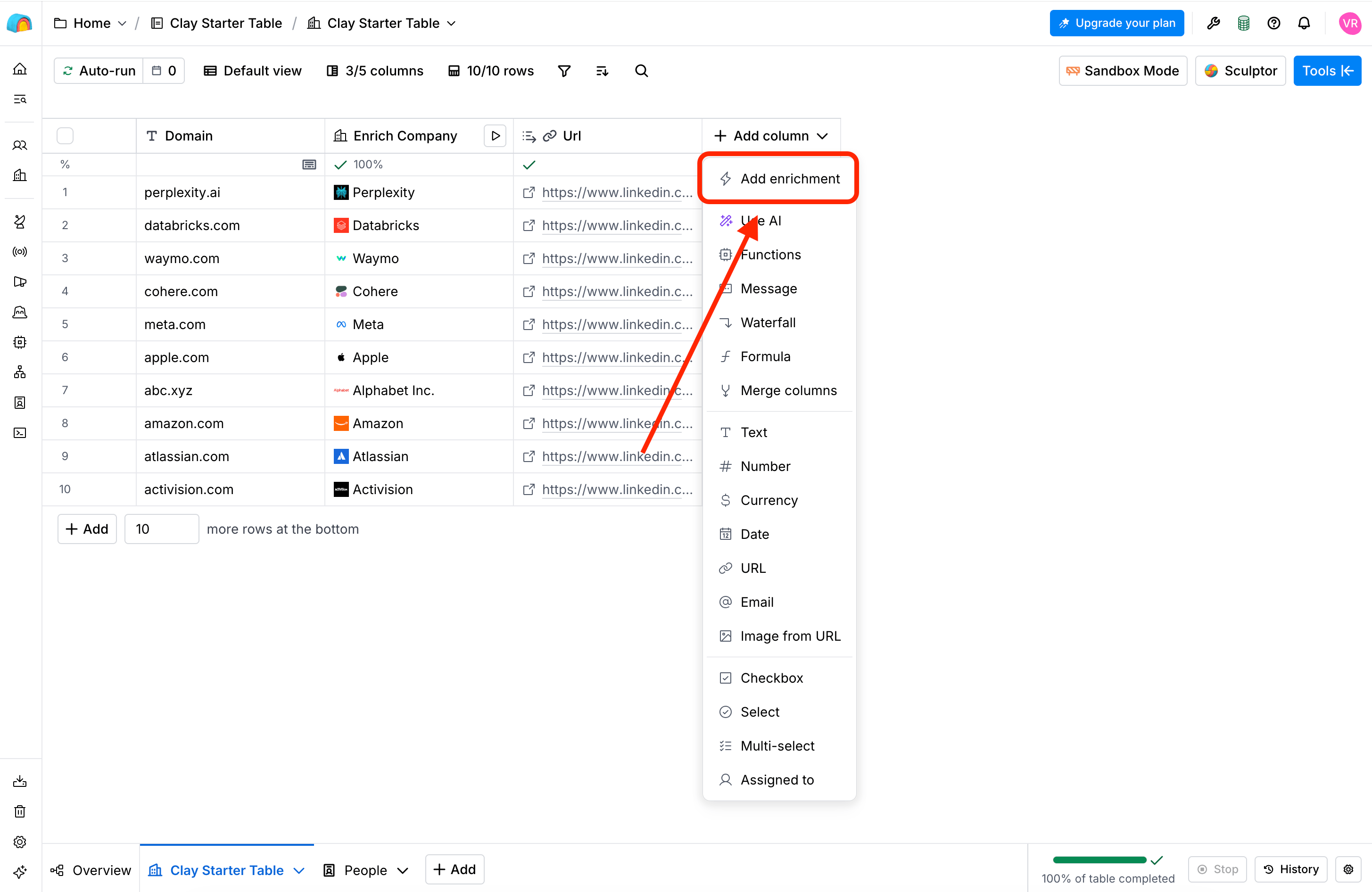
Open a Clay table and click **Add Column**, then select **Add enrichment**.
🎉 Your PDL connection is now available in your Clay workspace and can be selected when you configure supported PDL enrichments in your workflows.
***
## Method 2: Add your API key from the Enrichment Panel
If you're already working in a Clay table, you can add a PDL API key while setting up an enrichment.
This creates the same workspace-level connection as Method 1. After you save it, you can reuse the connection in other tables and workflows.
Open a Clay table and click **Add Column**, then select **Add enrichment**.
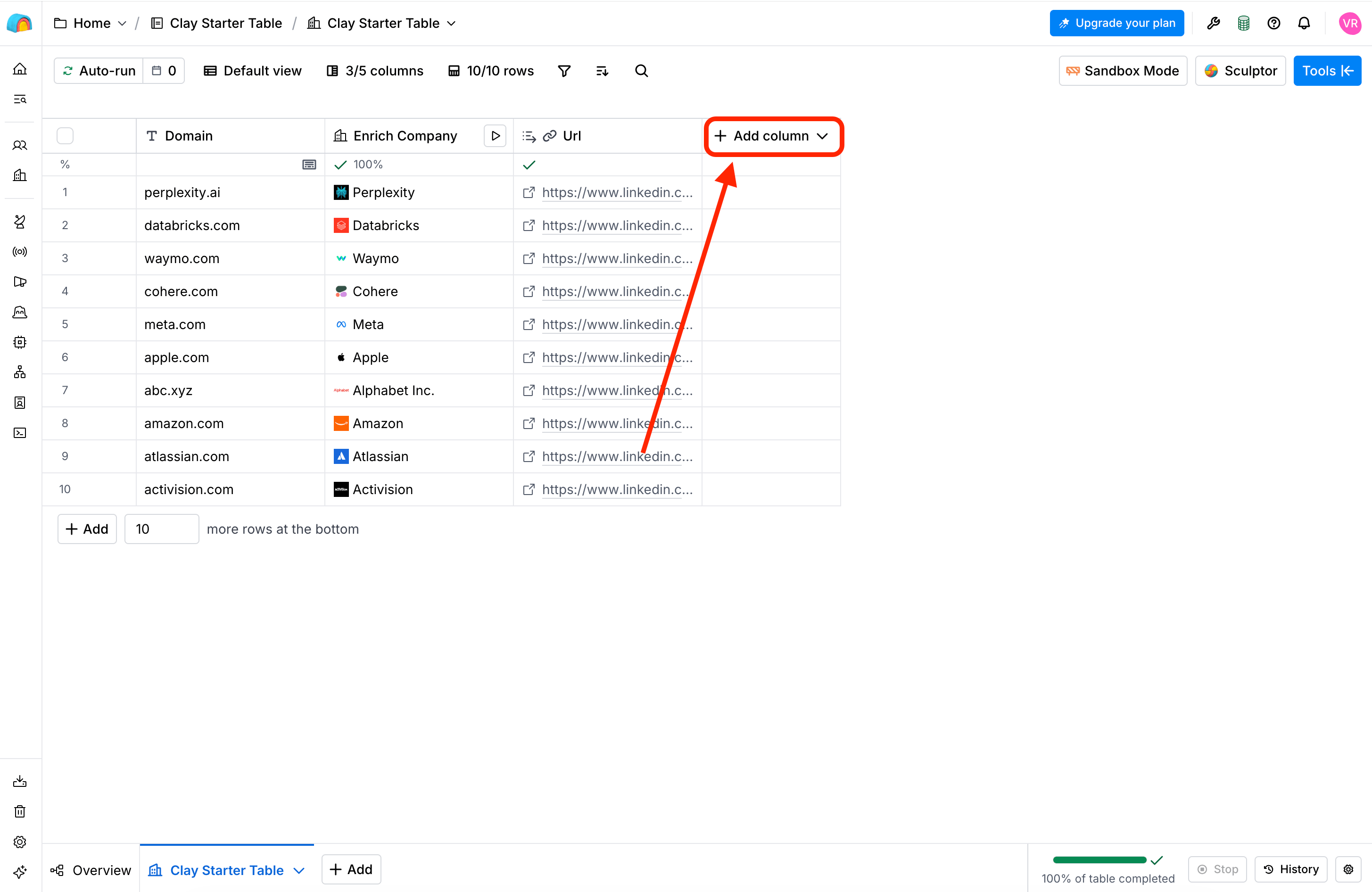
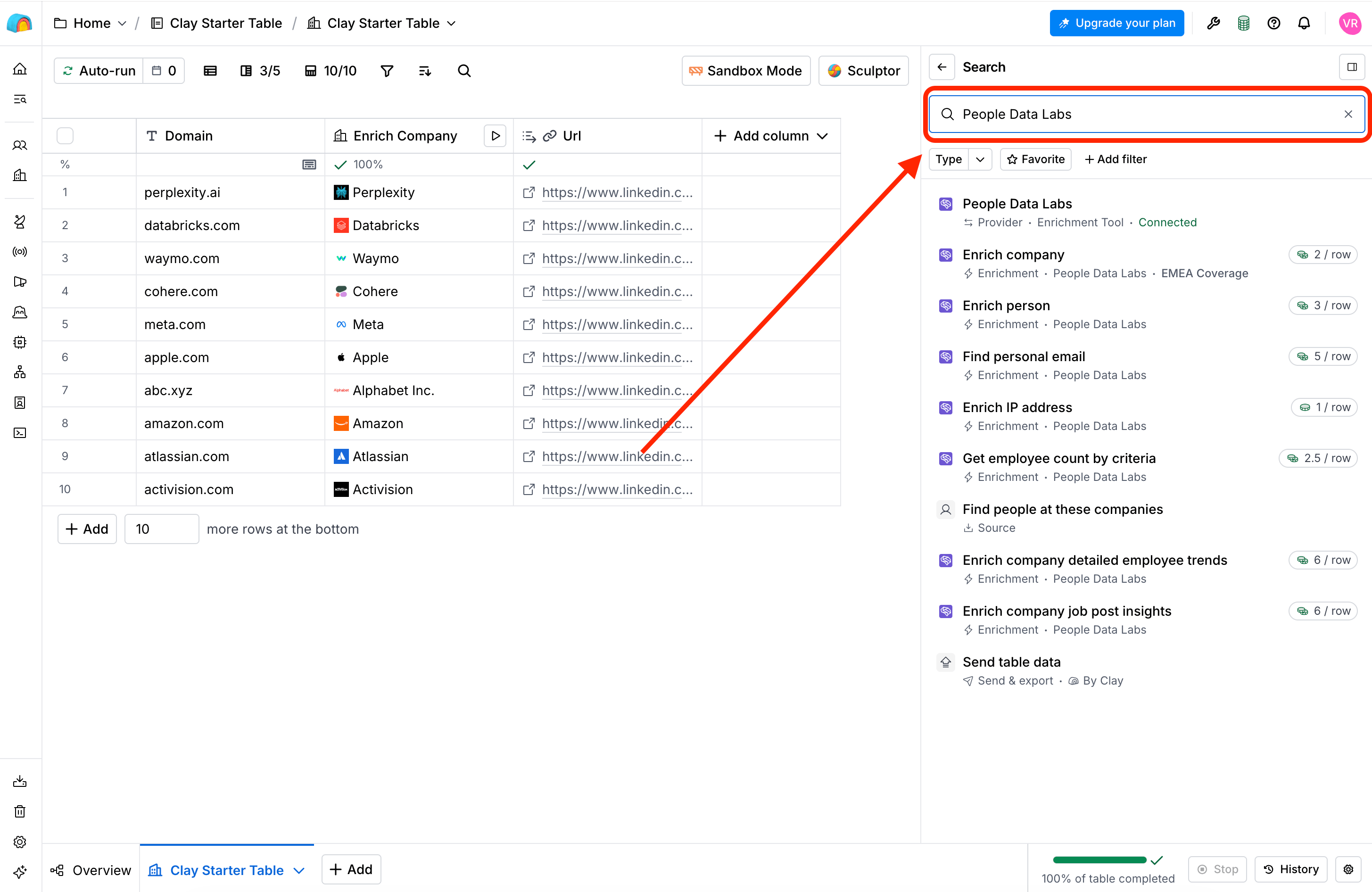
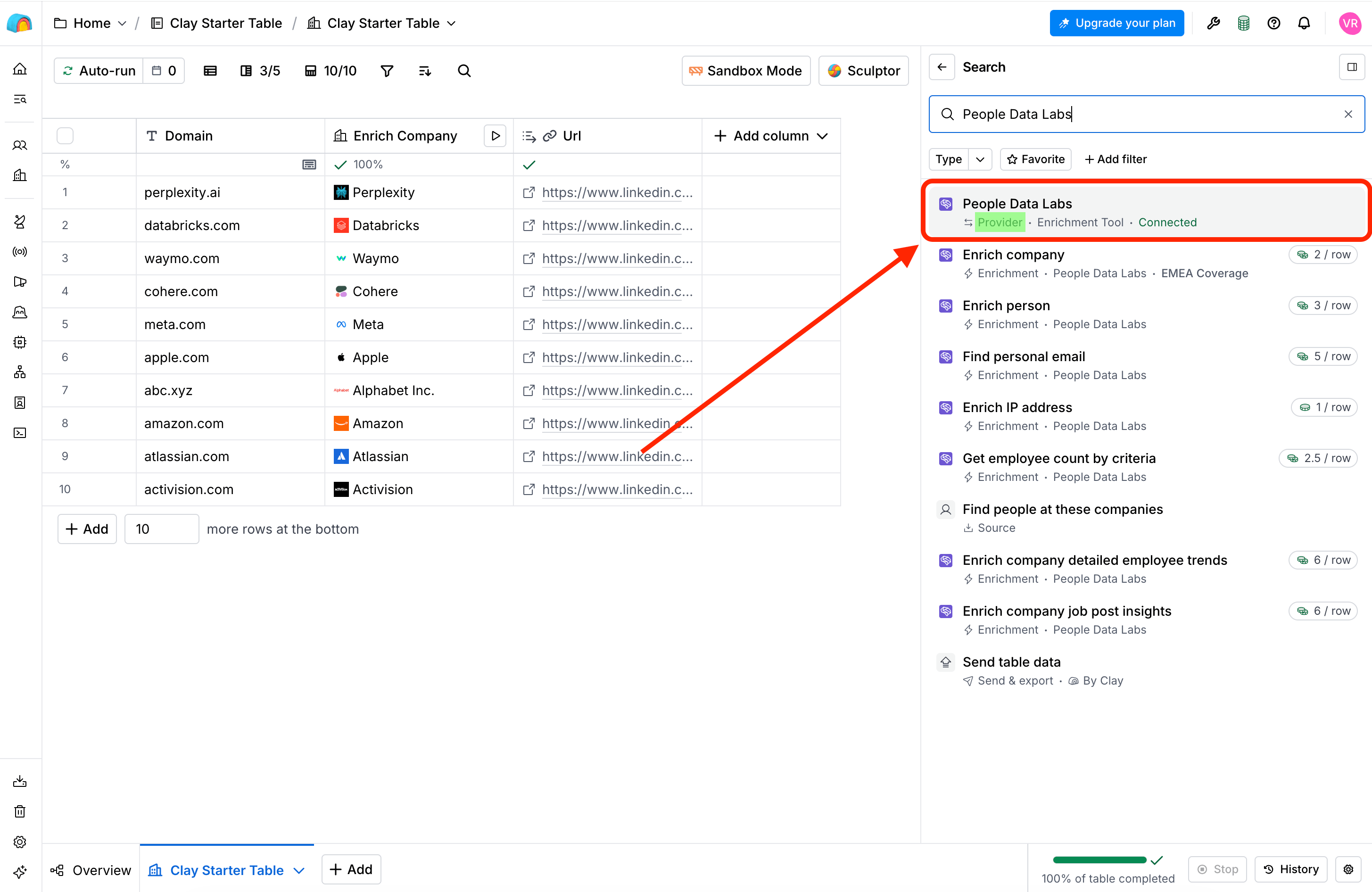
 Search for **People Data Labs** and select the enrichment action you want to add to your table.
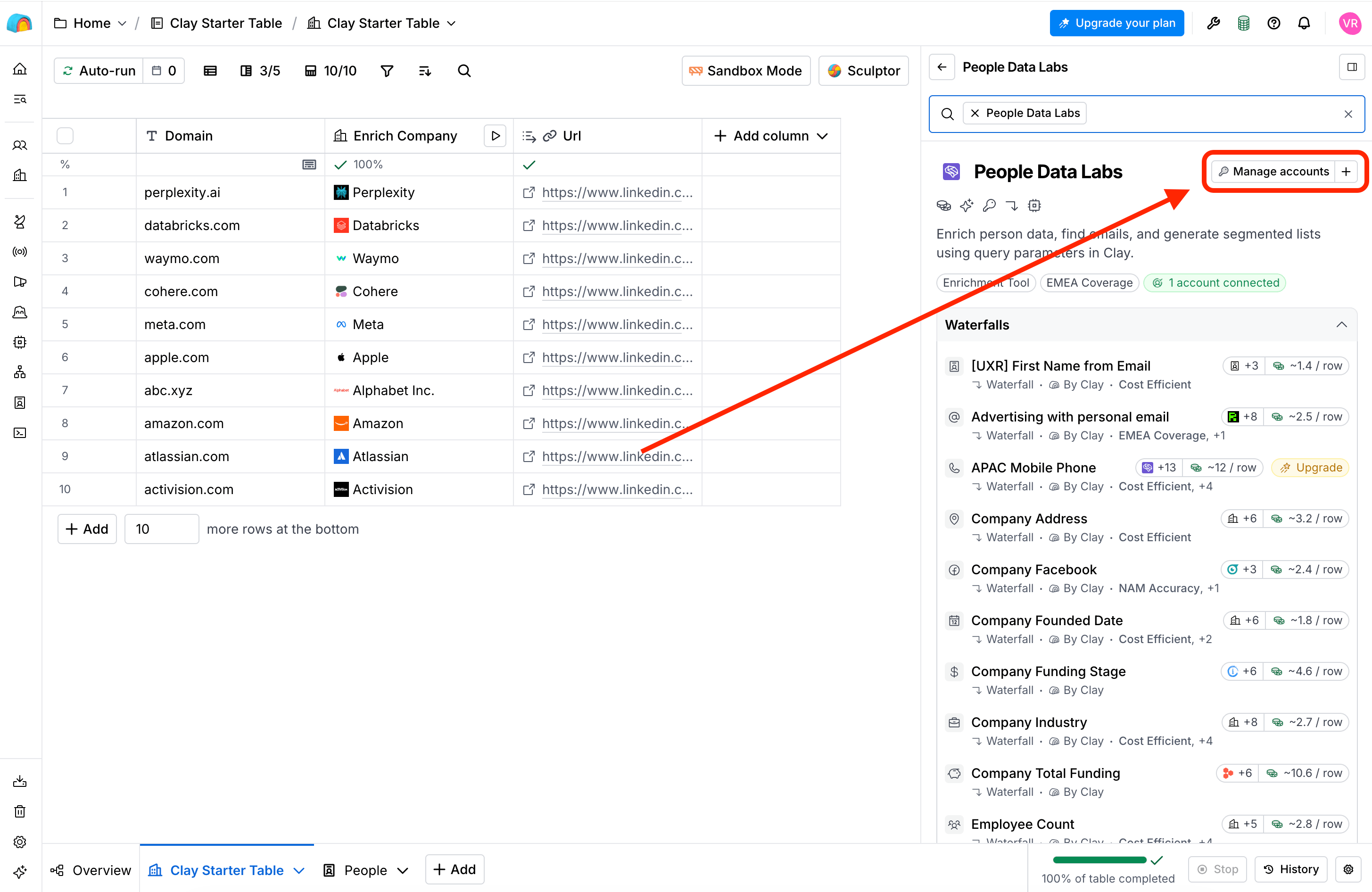
 In the enrichment setup panel, open the **Account** menu and select **Manage accounts +**.
 In the connection form:
1. Enter a name for the connection.
2. Paste your PDL API key.
3. Select whether to save this as the default API key for this connection.
In the connection form:
1. Enter a name for the connection.
2. Paste your PDL API key.
3. Select whether to save this as the default API key for this connection.
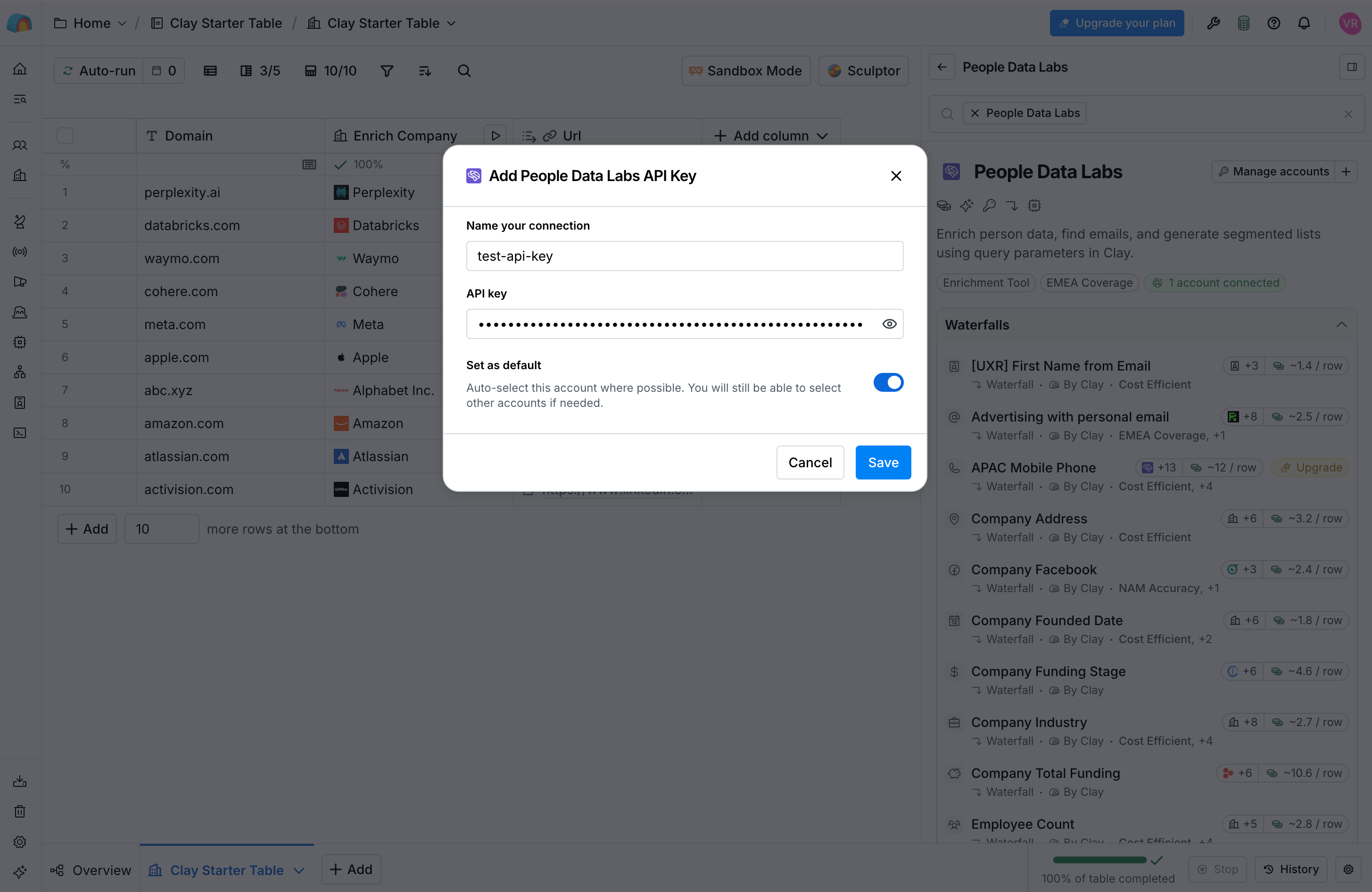 Use a name that will help you distinguish this connection from Clay-managed PDL connections or from other PDL API keys you may add.
Click **Save**.
Use a name that will help you distinguish this connection from Clay-managed PDL connections or from other PDL API keys you may add.
Click **Save**.
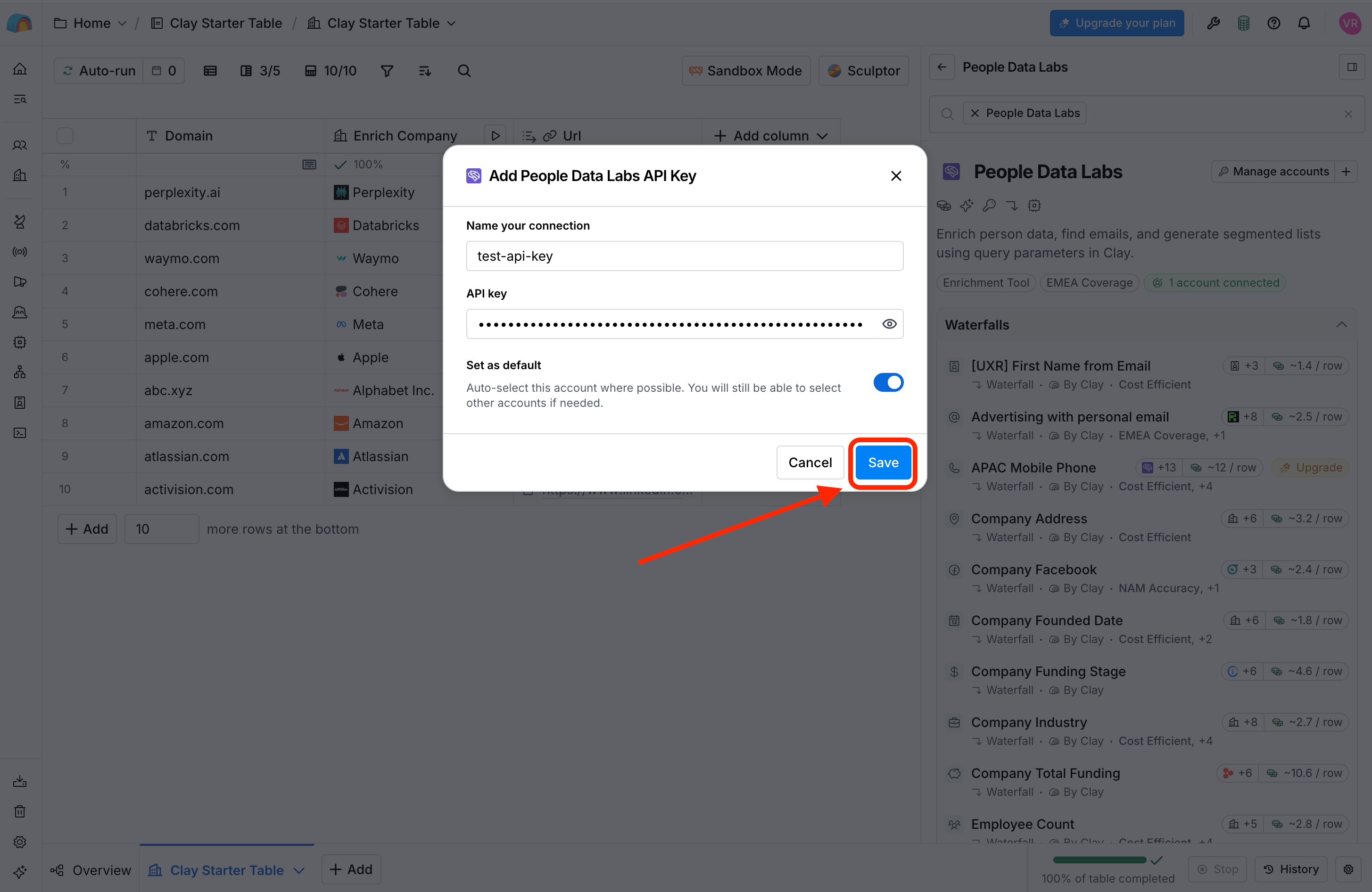 🎉 Your PDL connection is now available in your Clay workspace and can be selected when you configure supported PDL enrichments in your workflows.
***
## FAQs
Clay provides managed People Data Labs connections out of the box, so you can use PDL enrichments without connecting your own API key.
When you use a Clay-managed PDL connection, the enrichment uses Clay's PDL account and consumes Clay credits.
If you connect your own PDL API key, the enrichment instead uses your PDL account and its available PDL API credits. You don't pay Clay credits for the PDL data used through your own connection.
See [Clay Integration](/docs/clay-integration) for more information about the two options.
Clay provides separate People Data Labs connections for different PDL products:
**👤 Person (`People Data Labs`)**
Use the Person connection when you want to enrich individual professionals with information about their identity, employment, education, and other professional attributes. Common use cases include sales prospecting and recruiting.
**🏢 Company (`People Data Labs Company`)**
Use the Company connection when you want to enrich organizations using information such as a company name or domain. This is useful for building firmographic profiles, qualifying accounts, and evaluating companies against your ideal customer profile.
**🌐 IP (`People Data Labs - IP`)**
Use the IP connection when you want to identify the company associated with an IP address. This can be useful for workflows such as identifying organizations visiting your website.
You can configure any combination of these connections. Your PDL account must have the appropriate credits available for the PDL products you use.
No. A single PDL API key can be used across multiple PDL products, including Person, Company, and IP, as long as your PDL account has the appropriate credits available.
You can also create multiple PDL API keys if you want to separate usage across different workflows, teams, or PDL products.
Open the enrichment's **Account** menu and select the connection you created with your PDL API key.
Check whether your Clay workspace permissions allow you to create connections.
For an overview of using People Data Labs in Clay, including the differences between Clay-managed connections and using your own PDL API key, see [Clay Integration](/docs/clay-integration).
For the full list of available PDL actions in Clay, see [Clay's People Data Labs integration guide](https://university.clay.com/docs/people-data-labs-integration-overview).
## Related topics
- [Clay Integration](/docs/clay-integration.md)
- [Data Delivery Using Direct Download](/docs/data-delivery-using-direct-download.md)
- [Salesforce Integration](/docs/salesforce-integration.md)
- [October 2021 Release Notes](/changelog/october-2021-release-notes-v16.md)
- [How To Authenticate Our APIs Within a Zap](/docs/authenticate-our-apis-within-a-zap.md)
🎉 Your PDL connection is now available in your Clay workspace and can be selected when you configure supported PDL enrichments in your workflows.
***
## FAQs
Clay provides managed People Data Labs connections out of the box, so you can use PDL enrichments without connecting your own API key.
When you use a Clay-managed PDL connection, the enrichment uses Clay's PDL account and consumes Clay credits.
If you connect your own PDL API key, the enrichment instead uses your PDL account and its available PDL API credits. You don't pay Clay credits for the PDL data used through your own connection.
See [Clay Integration](/docs/clay-integration) for more information about the two options.
Clay provides separate People Data Labs connections for different PDL products:
**👤 Person (`People Data Labs`)**
Use the Person connection when you want to enrich individual professionals with information about their identity, employment, education, and other professional attributes. Common use cases include sales prospecting and recruiting.
**🏢 Company (`People Data Labs Company`)**
Use the Company connection when you want to enrich organizations using information such as a company name or domain. This is useful for building firmographic profiles, qualifying accounts, and evaluating companies against your ideal customer profile.
**🌐 IP (`People Data Labs - IP`)**
Use the IP connection when you want to identify the company associated with an IP address. This can be useful for workflows such as identifying organizations visiting your website.
You can configure any combination of these connections. Your PDL account must have the appropriate credits available for the PDL products you use.
No. A single PDL API key can be used across multiple PDL products, including Person, Company, and IP, as long as your PDL account has the appropriate credits available.
You can also create multiple PDL API keys if you want to separate usage across different workflows, teams, or PDL products.
Open the enrichment's **Account** menu and select the connection you created with your PDL API key.
Check whether your Clay workspace permissions allow you to create connections.
For an overview of using People Data Labs in Clay, including the differences between Clay-managed connections and using your own PDL API key, see [Clay Integration](/docs/clay-integration).
For the full list of available PDL actions in Clay, see [Clay's People Data Labs integration guide](https://university.clay.com/docs/people-data-labs-integration-overview).
## Related topics
- [Clay Integration](/docs/clay-integration.md)
- [Data Delivery Using Direct Download](/docs/data-delivery-using-direct-download.md)
- [Salesforce Integration](/docs/salesforce-integration.md)
- [October 2021 Release Notes](/changelog/october-2021-release-notes-v16.md)
- [How To Authenticate Our APIs Within a Zap](/docs/authenticate-our-apis-within-a-zap.md)